Debian 12 minimal install + dwm
Edit [2025]: I'm no longer using the setup described below, but it may still be of interest to some. I've switched to Void Linux with Ratpoison, and I don't think I need anything else on this laptop.
Debian 12 minimal: learning from start
Less is more
After using several lightweight, minimal, and aesthetically pleasing Linux distributions (Xubuntu, Crunchbang/Bunsenlabs, ElementaryOS, and many many more!), I decided to 'create' a lighter system to make the most of my laptop (Asus X201E). I installed Debian 12 minimal, and then started to add packages one by one, trying to understand the role of each one.
On this page, you'll find all the things that I have learnt (and that I'm still learning) in the process.
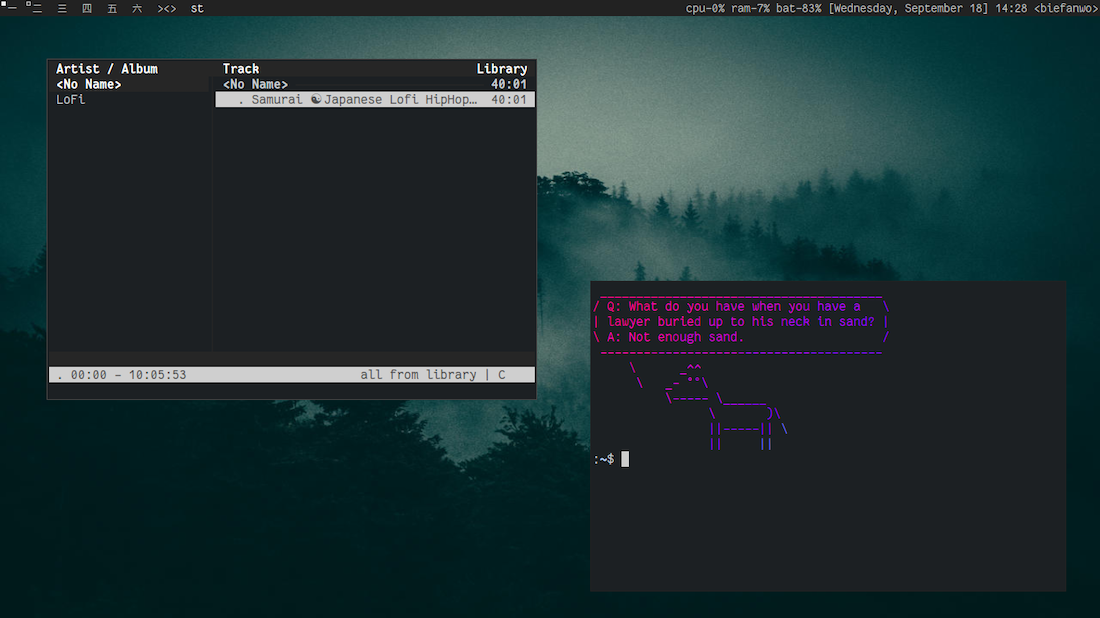
Installing Debian 12 Bookworm minimal
I mainly followed this video by JustAGuy Linux on YouTube. I skipped the BTRFS part of the video, because I'm using Ext4 (for those wondering, BTRFS is a more modern file system allowing snapshots, If I'm not mistaken). The video covers every aspect of the installation process, is very educational and easy to follow.
Partitioning
As I did a traditionnal partitioning, I formatted my main partition as Ext4 (and not as BTRFS, as in the video). I also DID NOT create any swap partition (see zram section bellow).
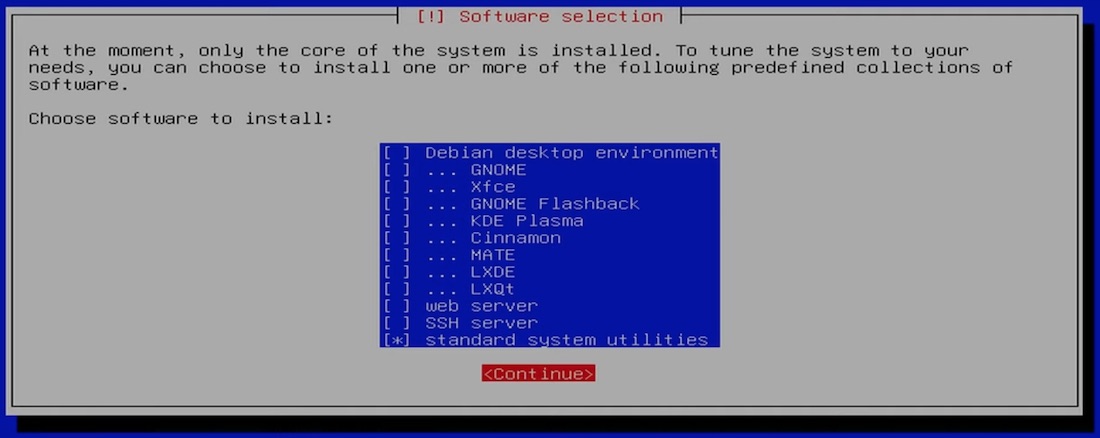
Selecting and installing software (Debian 12 installer)
In the 'Select and install software' section, unselect all the options (Debian desktop environment, GNOME, Xfce, etc.) and maintain only 'Standard system utilites'.
To go minimal, you do not want to install any desktop environments.
Rebooting after Debian 12 install
When you are done with the install process and you have rebooted, you are presented with a simple login prompt (for more info, search for 'console' and/or 'tty1'). Enter your username and password; you are now logged in your Debian 12 machine!
Finishing install with swap/zram
zram — As we did not create any swap partition, we are going to install the zram tools which, to my understanding, is a better option than creating a swap partition if you are using a SSD.
sudo apt install zram-tools
At this point, you may want to install the text editor of your choice (nano, vim, macro...) to edit configuration files (sudo apt install nano, for instance).
Tip: you can type lsblk to see your disks/partitions.
Editing the zramswap file
nano /etc/default/zramswap
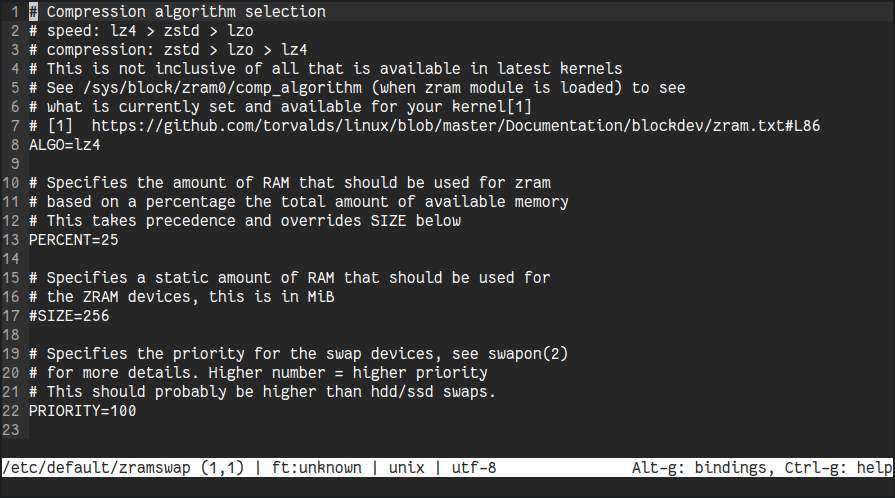
In this file, I have uncommented/edited 3 lines (see #comments in the file to get info):
ALGO=lz4
PERCENT=25
PRIORITY=100
Then type sudo reboot and lsblk to see the actual value of zramswap. On my computer, zram0 is now equal to 949M (as I have 4GB RAM, this value is roughly 25% of the total).
Now what?
As I do not want any desktop environment (and its associated packages), I want to install a simple window manager, dwm (from suckless, plus a couple of other suckless tools (slstatus, st,...). But before doing so, we need to install a few required packages/dependencies.
Note: I realised that Debian 12 minimal install did not create my user's subfolders.
So I typed xdg-user-dirs-update to create them.
Required packages
I tried to install the minimal numbers of packages. Here's my list (maybe it can be smaller...):
- xorg
- xserver-xorg
- xbacklight [for retrolighting enablement?]
- xbindkeys
- xvkbd [virtual keyboard?]
- xinput [device manager?]
- build-essential [dev tools are not installed on Debian 12 minimal; needed to compile]
- libx11-dev
- libxft-dev
- libxinerama-dev
Installing dwm + other suckless tools
I first created a folder for cloning dwm (and other suckless tools) files.
mkdir ~/.config/suckless
I cloned the suckless tools from the git repository into my folder. (You need to install the git package first, if you haven't done so.)
git clone https://git.suckless.org/dwm — dmw is the "main" part, that is the window manager.
git clone https://git.suckless.org/dmenu — dmenu is a dynamic menu (launcher).
git clone https://git.suckless.org/st — st is a Simple Terminal (st) emulator.
git clone https://git.suckless.org/slock — slock is a screen locker (haven't configured it yet).
git clone https://git.suckless.org/slstatus — slstatus is a status manager (that is the configurable upper bar with info on spaces, opened programs, date/time, etc.)
Quick note: You'll find the following message on suckless homepage:
Because dwm is customized through editing its source code, it's pointless to make binary packages of it. This keeps its userbase small and elitist. No novices asking stupid questions. There are some distributions that provide binary packages though.
I have mixed feelings about the statement 'novices asking stupid questions'. Installing dwm is not very complicated, but if you (like me) have random linux knowledge, you'll certainly have a lot questions to ask. Anyway. :)
The dwm part
Access your dwm folder: cd ~/.config/suckless/dwm
Then type: sudo make clean install and you're done!
After installing dwm, I tried to start it from the console typing startx, and I received an error message saying something like dwm: cannot open display. After a quick search, I realised that I needed to create a .xinitrc file. So I did.
I created '.xinitrc' (with sudo micro ~/.xinitrc) and inserted this single line exec dwm at the end of the file.
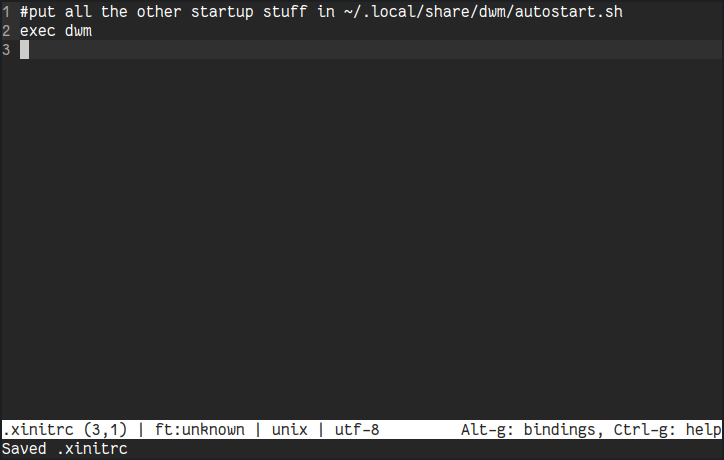
As you may have noticed in the first #comment of my .xinitrc, I initially put some startup stuff here, but I finally moved them to a file called autostart.sh (see bellow).
At this point, you can launch dwm typing startx.
The other suckless tools
You can now install the other suckless tools.
cd ~/.config/suckess/st and sudo make clean install
cd ~/.config/suckess/dmenu and sudo make clean install
cd ~/.config/suckess/slock and sudo make clean install
cd ~/.config/suckess/slstatus and sudo make clean install
Note: I still need to understand clearly the difference between make clean install and make install. Yes, it's a 'novice question', but I'm trying to figure out exactly what these two commands really do. According the CharGPT (my install assistant), even sudo make install clean is different from the two other commands. 😅
Customizing dwm + the suckless tools
At this point, you can start customizing dwm and the other suckless tools (I'm not talking about applying patches; we'll see this part later). You do this by editing the config.h file located in each corresponing folder (/dwm or /dmenu or ...).
You should find everything you need on the Internet to do so. I personnaly changed the display font, the number and name of the tags (spaces), assigned tags to particular applications, etc. Maybe I'll create specific sections about this point later.
Whenever you edit a config.h file, remember to do sudo make install to apply the change. Then quit dwm (ctrl+modKey+q), and log back into it typing startx in the console.
Note 1: The modKey is, by default, the alt key. I changed it to be the Windows key.
Note 2: You can use a display manager to select graphically your session (instead of typing startx in the console).
Other useful packages
Here's a list (it may be be updated in the future) of a few useful packages you may want to install, all available on Debian default repos:
- unzip
- feh [for setting background]
- viewnior, qimgv, imagemagick... [image viewers and/or editors.. try them!]
- firefox-esr or qutebrowser [my new favorite! ♥︎]
- neofetch [not maintained anymore, but it works well; alternatives exist]
- scrot [screenshot tool]
- dunst [notification tool]
- geany [UI text editor — It also has nice plugins]
- thunar [UI text editor from Xfce, but installs Xfce dependencies] or ranger [CLI file manager ♥︎]
- cmus [CLI music player ♥︎]
- tldr [Too Long Didnt Read - short reminders about terminal commands]
- lxappearance [graphical GTK theme selector > for adjusting UI windows]
- plocate [tool for searching files on your system]
- mupdf [PDF reader]
- Other packages: cups [if you have a printer] bluetooth [if you need it]
Sound support
I installed the pulse tools (instead of alsa), but I don't really know the difference for now. I should investigate...
- pulseaudio [sound server that handles audio device management and sound mixing between applications]
- pavucontrol [graphical interface for PulseAudio]
- pamixer [CLI tool for PulseAudio > control volume, manage I/O devices, adjust other audio settings]
- pulsemixer [another CLI tool for PulseAudio]
Sections to add
Edit: I'm now using Void Linux with various window manager (ratpoison and i3, mainly). I'll write soon a new post about it. So it's very possible that I won't complete the following sections here, but in another part of this site.
- Making script and using dunst to show when I raise/lower/muste volume with fn keys
- Patching dwm (autostart.sh)
- ssh, left, rsync
- network management
- terminal ricing
- using dwm + shortcuts
- setting a wallpaper and keeping it on startup
- installing fonts
- installing a display manager
- Why I don't use (for now) any compositor